When you drag and drop a discovery into your tabulation, you can either show and manipulate a "live" view of the discovery's data in Tabulate or copy that same data into Tabulate but with fixed values (as they were when last saved in Discover). These two options are described as follows:
- Formula - Each cell in the spreadsheet connects live to the data source independently. There is no relationship between the source Discover report (and query) and the resulting cells.
- Direct - The Discover report is reflected in the Tabulate spreadsheet as a complete query result. It keeps the connection to the original Discover content, so changes to the underlying Discover content will be reflected in the spreadsheet on refresh or reload. You can change chip locations within the drop zones locally within the spreadsheet - but they will always reflect the same query selections made in the original source Discover report.
Important: You might be prompted to choose between these options when you drag a discovery into your tabulation. If not, then your User Defaults have determined which options should be applied. For more information, see User Defaults.
Reusing discovery data
Before you begin
- You should have your tabulation open in Tabulate. If you need to create a new tabulation, see Accessing Tabulate Pro.
- You should ensure that the discovery you want to copy into your tabulation is available to you; that is, it is present in your local My Content folder or is in a shared location that you have access to. For more information about sharing and directories, see Content Folder Structures.
Tip: If this is the first time you have used this functionality, you might want to check what your Discovery Display Type setting is in your User Defaults. This will help you to understand your set up and what to expect in terms of functionality.
Drag your discovery into your tabulation
Note: The following example assumes your Discovery Display Type is set to Dialog in your User Defaults. This setting prompts you to choose between Direct and Formula using the dialog. Alternatively, you can update your user defaults if you want to always select one or other of these options.
With your tabulation open in Tabulate:
- Drag your discovery data into your spreadsheet using one of the following options:
- Locate the discovery in the Content panel and drag it into the tabulation spreadsheet.
- With both the Tabulate and Discover tabs open, drag the discovery into the tabulation.
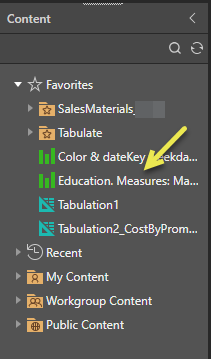
Tip: You can use the search option at the top of the panel if you know the name of the discovery that you want to copy in. (If you were to double-click a discovery in the Content panel, that discovery would open in a new tab in Discover.)
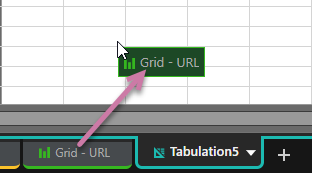
- When prompted, select the type of connection you want to make between the original discovery and the tabulation:
- Formula: Embeds a static snapshot of the data into the tabulation.
- Direct: Creates a "live" connection to the discovery, meaning that any updates to the discovery are reflected in the tabulation.
Formula
If you selected Formula, you have copied your data from the discovery at this moment in time. Using this option means that the data from your discovery will not be updated with data changes made to the source discovery in future. There is no "live" connection between the two files.
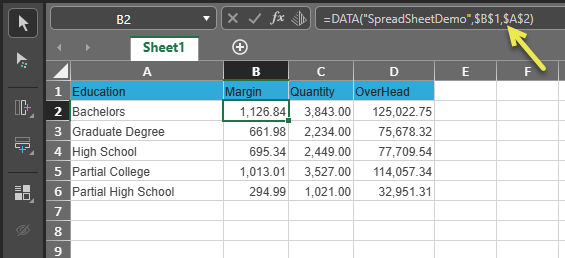
When you select a field containing static content that was copied from your discovery, the Formula row (yellow arrow) contains a value that indicates the source of the data:
- The cell selected in the example contains Data from the
SpreadSheetDemodata source. - The cells containing text in the spreadsheet are also driven by a formula. As an example, if you were to select the cell containing Margin, its formula is
=MEMBER("SpreadSheetDemo","[measures].[data Margin]")indicating that it is also from theSpreadSheetDemodata source.
Note: Interacting with this spreadsheet is effectively the same as interacting with a one-off discovery that you created using Discover Lite or Smart Reporting while using Tabulate.
Image URLs and URLs
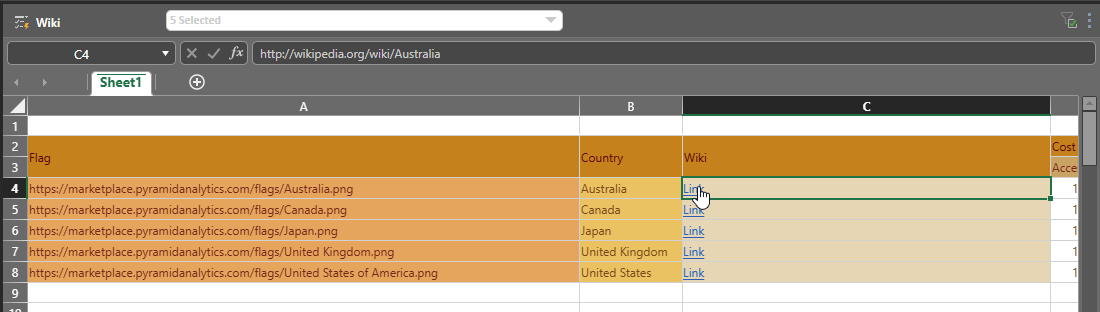
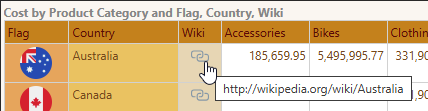
Your source discovery may include one or more Image URL or URL hierarchies (the Flag and Wiki columns in the flowing image):
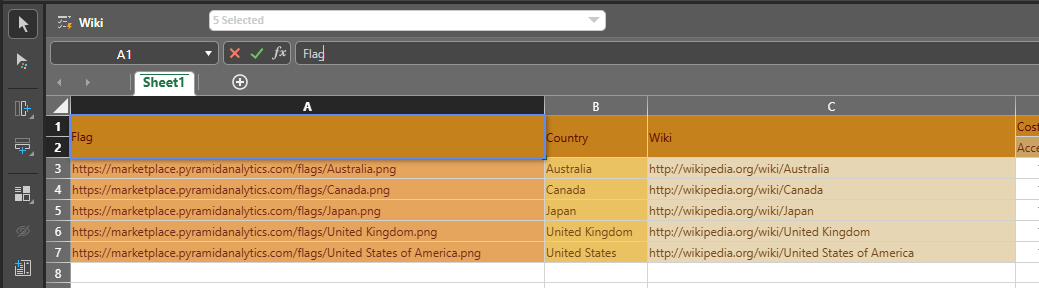
Where this is the case, selecting the Formula option causes the Image URLs and the URLs to be copied into the tabulation as unlinked text URLs:
Direct
If you selected Direct, you have retained your discovery as the single version of truth for your data. A live link is retained between the discovery and tabulation. Using this option means:
- Your spreadsheet is updated with data changes made to the source discovery by yourself or, where the discovery is saved in a shared location, by another user.
- You can interact with your spreadsheet in Tabulate, viewing its drop zones and changing the position of its chips to change the shape of your query and explore your data. These changes do not affect the source discovery.
- Your linked data is added to your spreadsheet as a Discovery Area. A Discovery Area is a special type of visual area that is generated automatically and can be used when embedding tabulation data in a presentation, publication, or an illustration, or when using a tabulation as a data source.
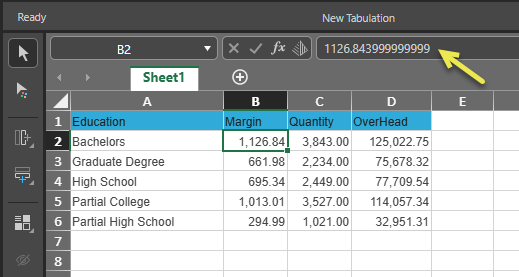
When you select a field that contains data that comes directly from the discovery, its value is the same in the cell and on selection in the formula bar.
- Click here for more information about working with Direct data
Image URLs and URLs
If your discovery contains Image URL or URL hierarchies as described above, but you select the Direct option when dragging your discovery into your tabulation, the hierarchies are treated differently:
- Image URLs are copied into the tabulation as unlinked text URLs as described above.
- URLs (Wiki in the example) are added to the tabulation as "live" links, which you can open using a standard click: